We recommend setup via Xtream Codes API because you will have the Catchup feature this way and also do not need to add any EPG URL (it will load automatically).
STEP 1:
Open the app once downloaded and click on “Add user” then click on “Login with Xtream Codes API“.
STEP 2:
In this step, in the first box, select any name you want for example “IPTV Xtream”. On the second and third boxes, enter the “Username” and the “Password” of your M3U line and the server URL which can also be found on your M3U line.
Now Click on “ADD USER” to proceed to the next sectio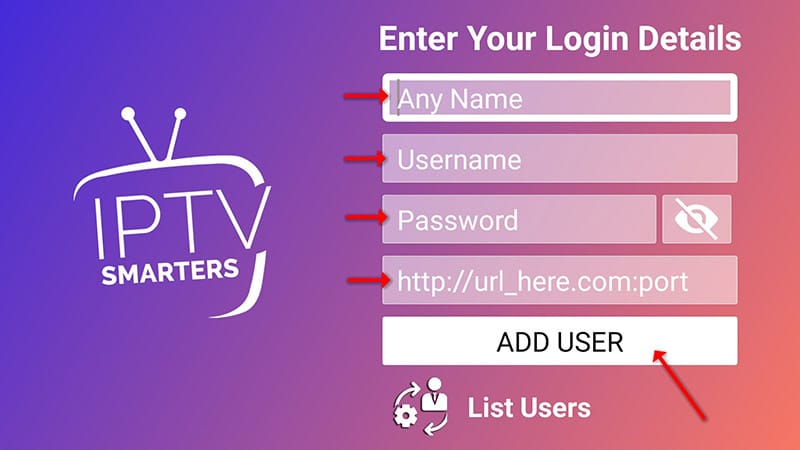
STEP 3:
Wait some seconds.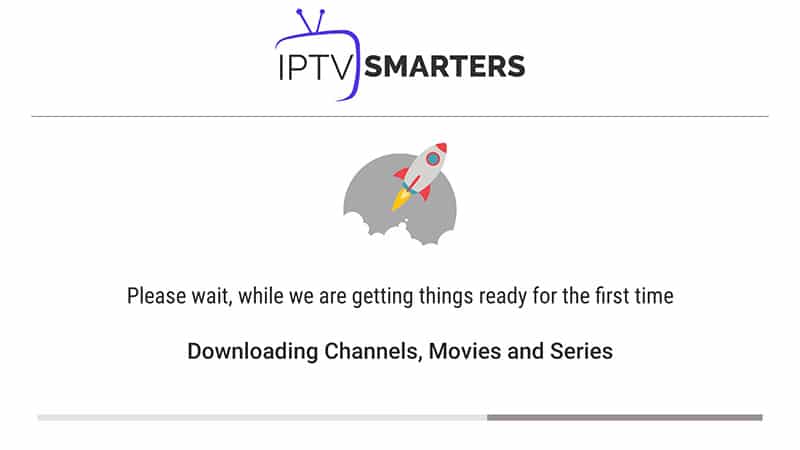
STEP 4:
Now click on the “Live TV” icon as depicted in the image via a red arrow.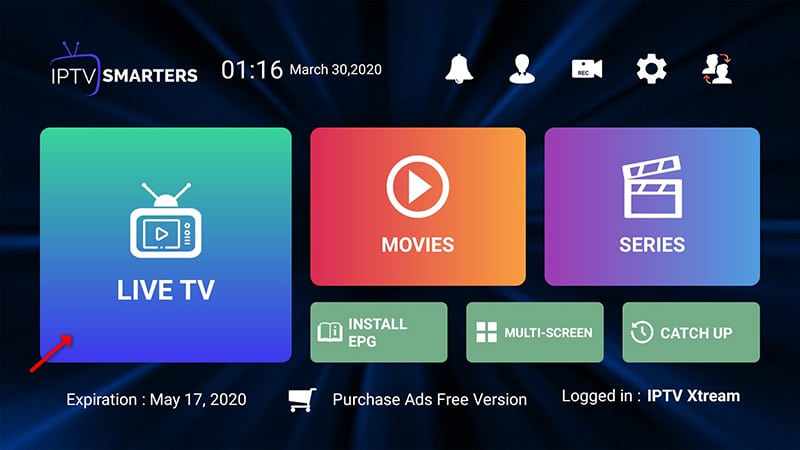
STEP 5:
Now you must select the channel group that you want to watch and proceed to the next section.
STEP 6:
Now you must click on the channel name and then double click on the small screen to turn into the full screen as the final step.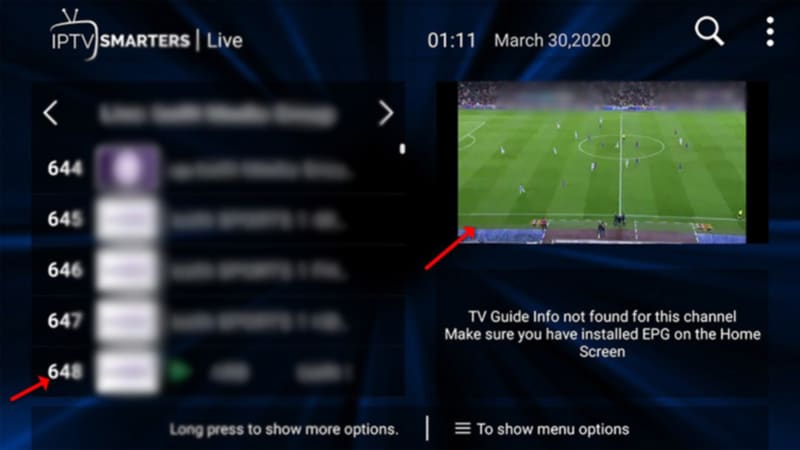
STEP 7:
To add EPG no need to add any EPG URL, Just click on “Install EPG“.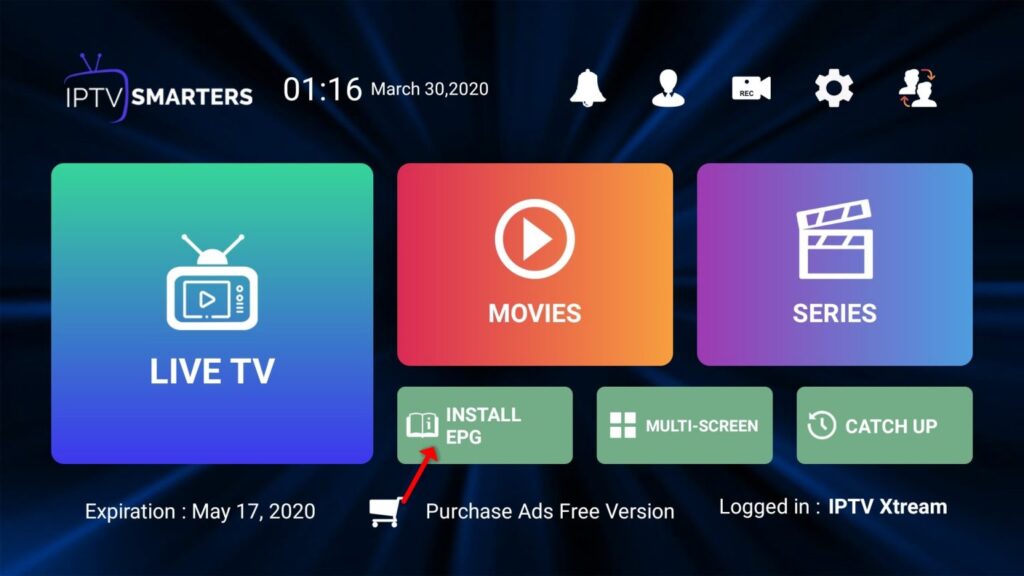
Setup IPTV Smarters via Playlist
If you don’t have an Xtream Code API, you can use an M3U URL and choose to Load Your Playlist or File URL.
STEP 1:
Open the app once downloaded and click on “Add user” then click on “Login with Playlist“.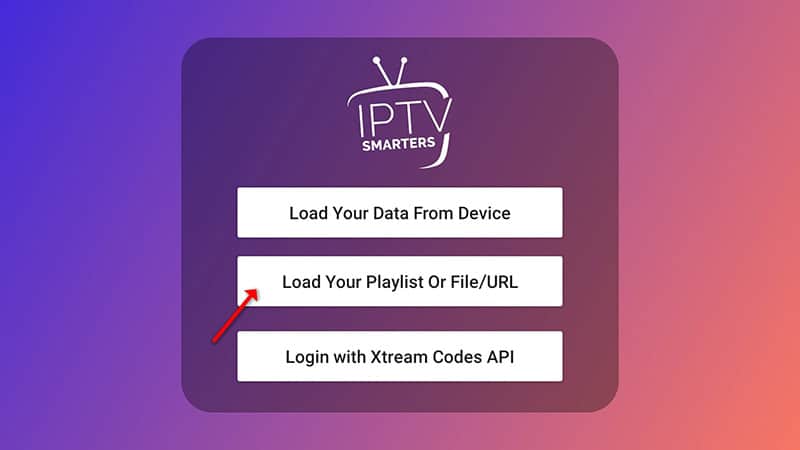
STEP 2:
In this step, in the first box, select any name you want for example “IPTV Playlist”. Select “M3U URL” and enter the M3U URL which you get from your IPTV provider.

STEP 3:
To add EPG click on “Install EPG” and enter the EPG url.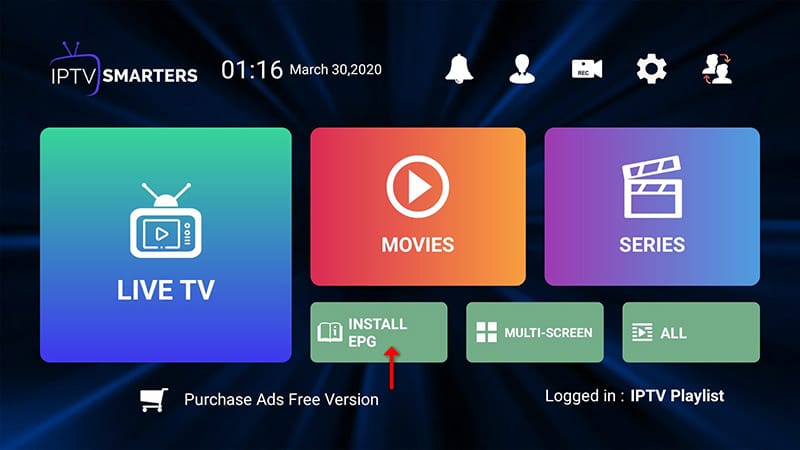

STEP 4:
Now click on the “Live TV” icon, select channels group then the channel you want to watch.